Files & documents · iPhone
How to open the same PDF quickly on iPhone
Open a project guide, course handout or reference sheet without searching for it each time. Use Files, add a Home Screen shortcut or keep a copy in Pin My File.
The short answer
Use Files to open the PDF in its existing location. Use Shortcuts, Apple’s built-in app for automating everyday tasks, to create a Home Screen icon that opens your PDF. Or use Pin My File to keep a local copy that opens automatically when you launch the app. Choose Files or Shortcuts if the original changes often; choose Pin My File for a reference document you want close at hand.
What you need: A PDF you can open in Files. The Shortcuts instructions use Preview on iOS 26 or later. Pin My File requires iOS 17 or later.
Pin My File is made by Long Lasting Apps, the publisher of this guide.

Compare your options
| Approach | A good fit when | Keep in mind |
|---|---|---|
| Files | You work with several documents and want to keep using their existing locations. | Favorite its folder for quicker access from Browse. This does not add the PDF to your Home Screen. |
| Apple Shortcuts | You want a Home Screen icon that opens one PDF and are willing to set it up. | This example needs Preview on iOS 26 or later. Check that the icon opens your chosen PDF. |
| Pin My File | You repeatedly open the same saved PDF. | It saves a separate copy. You need to replace that copy when the original changes. |
Keep a frequently used PDF easy to find in Files
- Files
For a document that changes often, staying with its existing location can be the simplest option. Make its folder easier to reach:
- Open Files → Browse and navigate to the location containing your PDF’s folder.
- Touch and hold the folder, then tap Favorite.
- Return to Browse. Open the folder under Favorites, then tap your PDF.
This favorites the containing folder, not the individual PDF, and does not create a Home Screen icon. If you need an icon that opens one document, follow the Shortcuts steps below.
When someone else maintains the document, check how updates arrive. Keeping the original location avoids creating an extra copy, but you still need to check that the file you open is current.
Create a PDF shortcut with Apple Shortcuts
- Shortcuts
- Preview
This example uses Shortcuts and Preview on iOS 26 or later. Start with a PDF you can already open in Files. You will choose the PDF once, then add an action that opens it in Preview.
- Create the shortcut. Open Shortcuts, tap the plus button and name it Open My PDF.
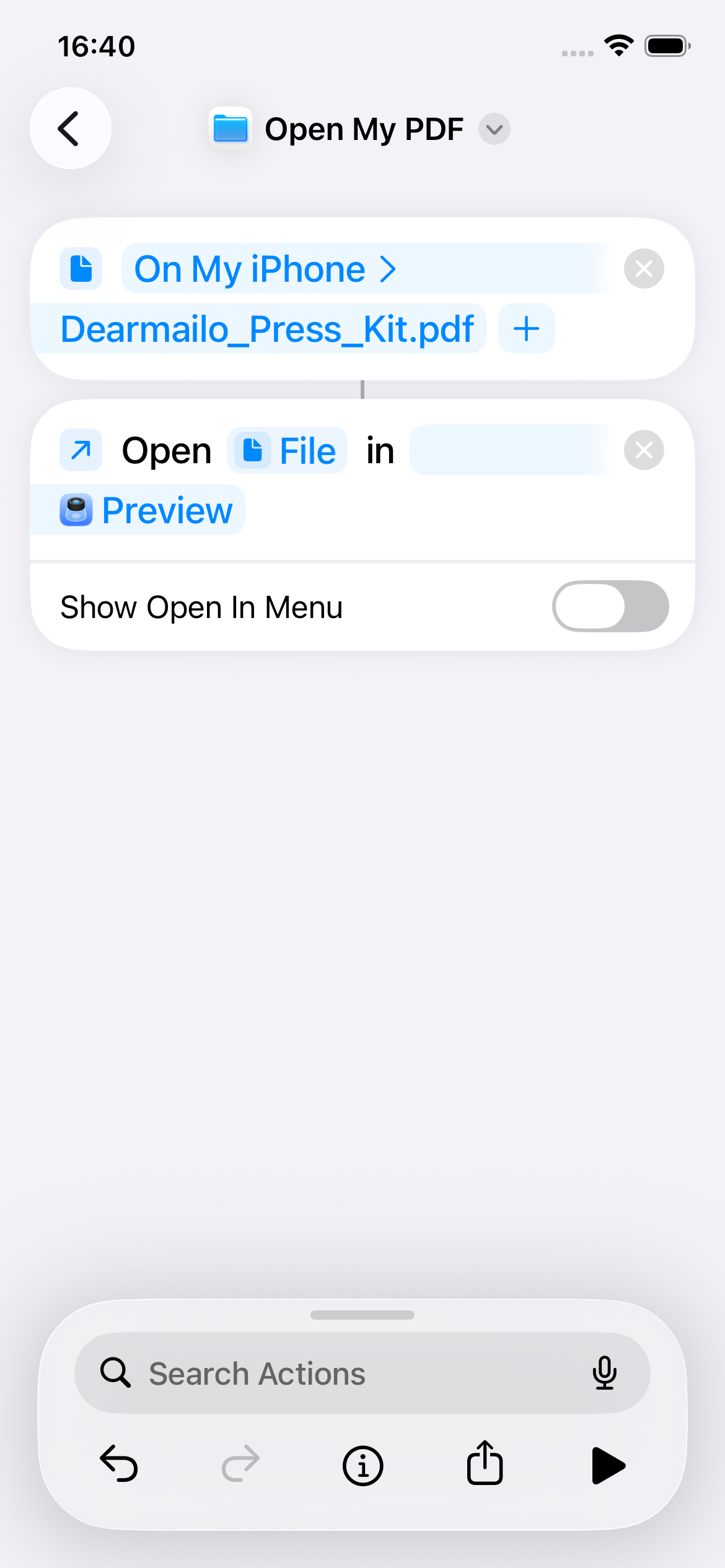
- Select your PDF. Search Actions for File and add the action that holds a specific file. Tap its file field and select your PDF in Files. The example uses Dearmailo_Press_Kit.pdf in On My iPhone; choose your own document and location.
- Add the opening action. Search for Open File and add it below the File action. Check that Open File uses the File selected in the first action. Using Open App alone would only launch an app without specifying your PDF.
- Choose Preview. Expand the opening action’s options if needed. Turn Show Open In Menu off and choose the app Preview. The completed action should read Open File in Preview.
- Test the shortcut. Tap the play button. If asked, allow access to the document you selected. Check that the correct PDF opens in Preview.
Compare your setup with the image: the first block identifies the PDF, the second receives that File, and the menu switch is off. The filename and folder are examples, not requirements.

Add the shortcut to your Home Screen and test it
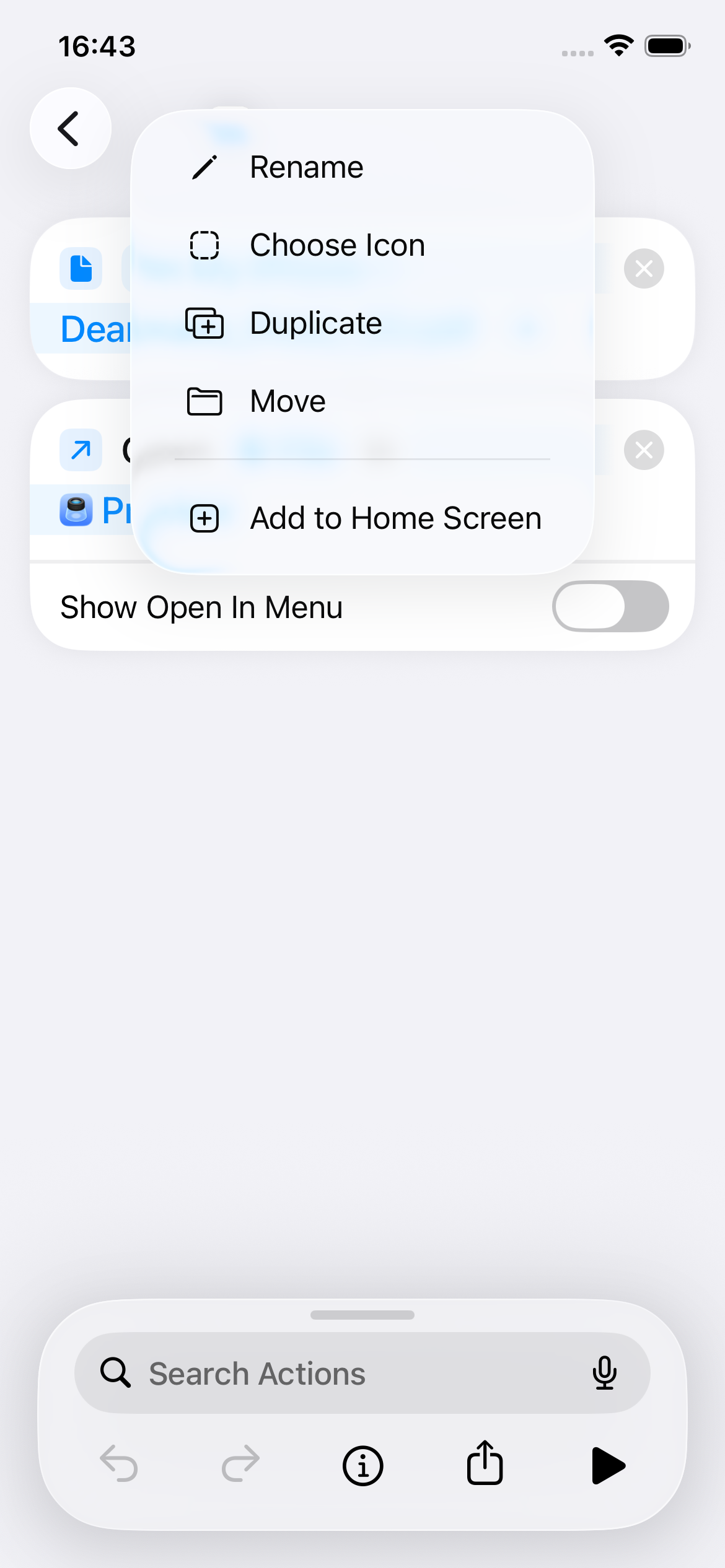
- Return to the shortcut editor and tap the arrow beside the shortcut name. Choose Add to Home Screen, review the name and icon, and tap Add. Some versions also offer this option through the info button’s Details screen. See Apple’s Home Screen instructions if the controls look different on your version.
- Return to your iPhone Home Screen and tap the new shortcut icon. Confirm that the intended PDF opens without asking you to choose a file or an app.
- Close the document, return to the Home Screen and repeat. Check whether any first-run permission prompt appears again.
Check access before relying on it. A PDF saved in iCloud Drive may still need to download before it can open. If offline access matters, download the document first and repeat the test with Wi-Fi and cellular data off. Restore your connection afterwards. Recheck the shortcut if you move, rename or replace the original.

Choose one file to open with Pin My File
- Pin My File
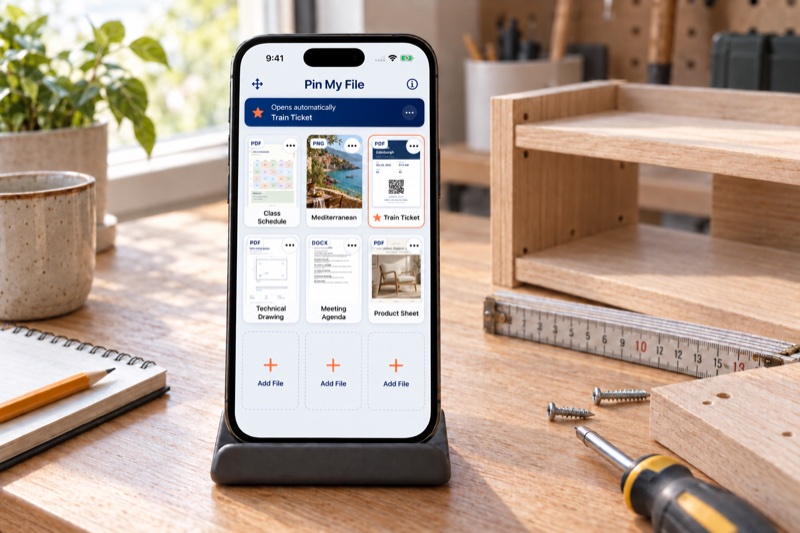
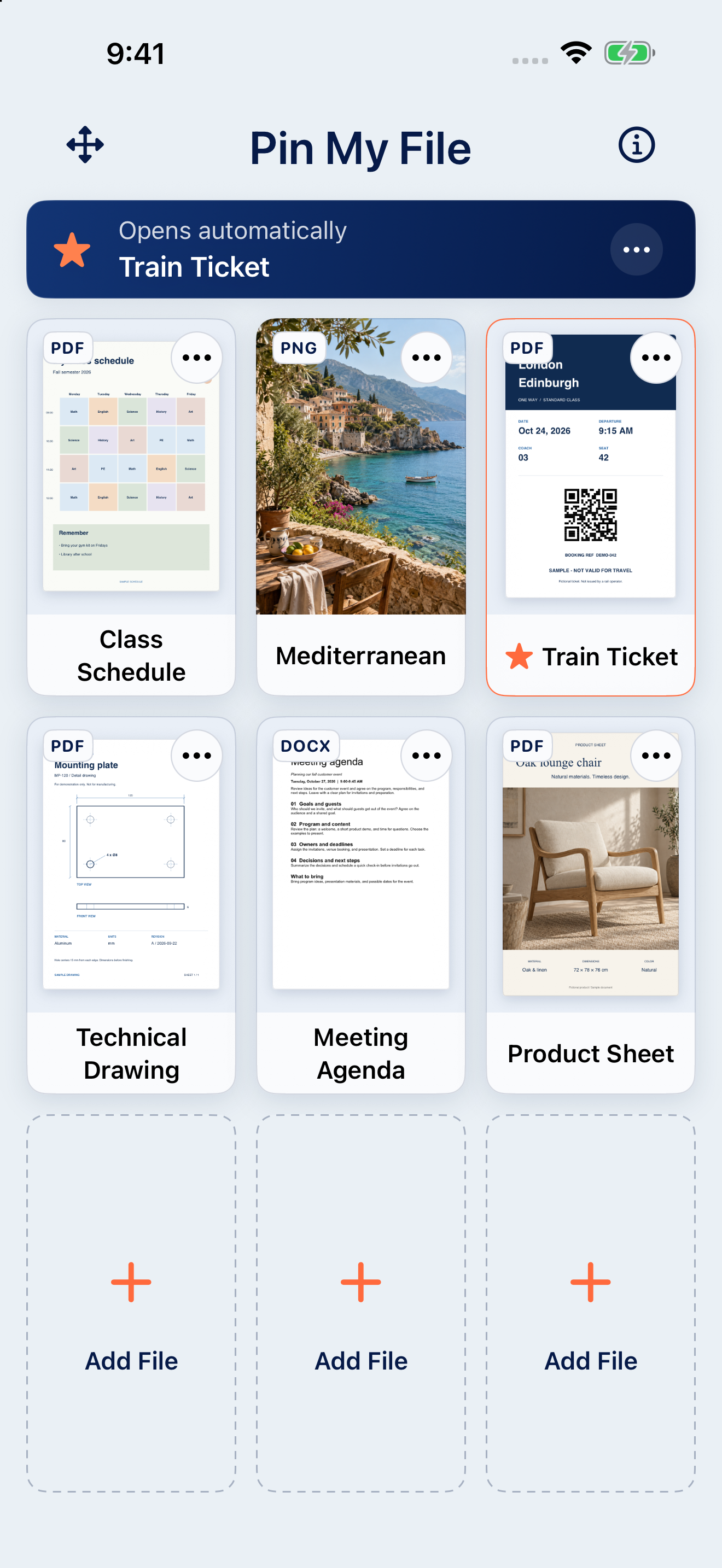
Choose this option to keep a separate copy of a PDF on your iPhone. The first slot and automatic opening are free. Full Access unlocks all nine slots and lets you rearrange your files.
- Open Pin My File. In an empty slot, tap Add → Files and select your PDF.
- Tap the file’s three-dot menu. Choose Open Automatically, shown beside the star.
- Check that your chosen file is marked for automatic opening. You can choose one file to open automatically at a time.

Check that Pin My File opens your PDF
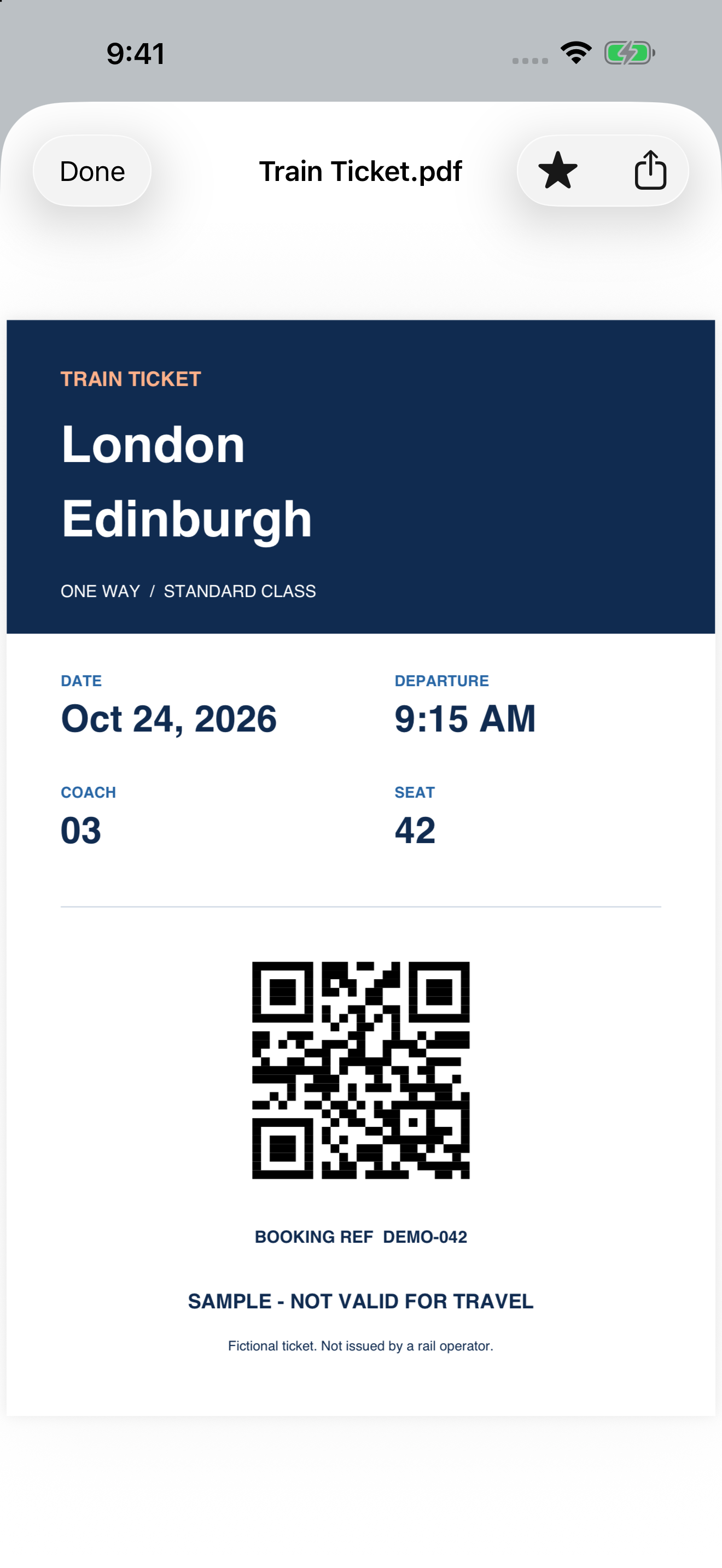
Return to the iPhone Home Screen, then tap Pin My File. Your chosen PDF should open in its preview. Tap Done to return to the grid and choose another file.
For example, if you selected Project Guide.pdf, check both the filename and the contents. This is an example document, not a file you need to download for the guide.

Keep your PDF up to date
When a new version arrives, open your PDF and check its contents. If you use Pin My File, open the file’s menu and choose Replace File to select the updated document.
If you use a shortcut, test it again after moving, renaming or replacing the original. Check the actual document that opens, not just the name on the Home Screen icon.
Check your result
- You can open the intended PDF through your chosen option: Files, your shortcut or Pin My File.
- The contents match the version you need.
- You know how to get an updated version. If you need access without an internet connection, you have tested that too.
If something does not work
Why does the shortcut ask me to choose a file or app every time?
Check that the first action contains a specific file rather than a Select File prompt. In Open File, use the output of that first action, choose Preview and turn Show Open In Menu off. Run it again with your test document.
Preview opens, but where is my PDF?
Check that you added Open File, with the first action’s File as its input. Open App only launches Preview. Also confirm that the selected document still opens from its location in Files.
My copy in Pin My File is out of date. How do I update it?
Pin My File keeps a separate local copy. In the file’s menu, use Replace File to select the newer document, then open it and check its contents. Editing the original does not update the pinned copy.
Why do I see the grid instead of the PDF?
Check that the file still exists in its slot and is selected for automatic opening. Return to the Home Screen and open the app again. Using Done inside a preview returns to the grid by design.
How do I stop automatic opening?
Open the selected file’s menu and choose Disable Auto-Open. The file stays in its slot. Selecting Open Automatically for a different file changes which one opens first.
Does a shortcut keep a copy or open the original?
The icon runs the actions inside your shortcut. This example selects a PDF from Files and opens it in Preview. If the original changes or moves, run the shortcut again and check the document that opens. If the PDF is in cloud storage, also check that you can access it when you need it.
Try it with one file.
Choose the PDF you return to most. The first slot is free, including automatic opening.