

Email on Mac
Mail merge on Mac: Apple Mail and Outlook options
Send the same message with a different name or company for each person. Compare Apple Mail and Outlook options, prepare your list and check a test email before sending.
The short answer
Use mail merge to personalize a shared message with each contact’s name or other details. Dearmailo works with Apple Mail; Word for Mac offers an alternative with compatible Outlook versions.
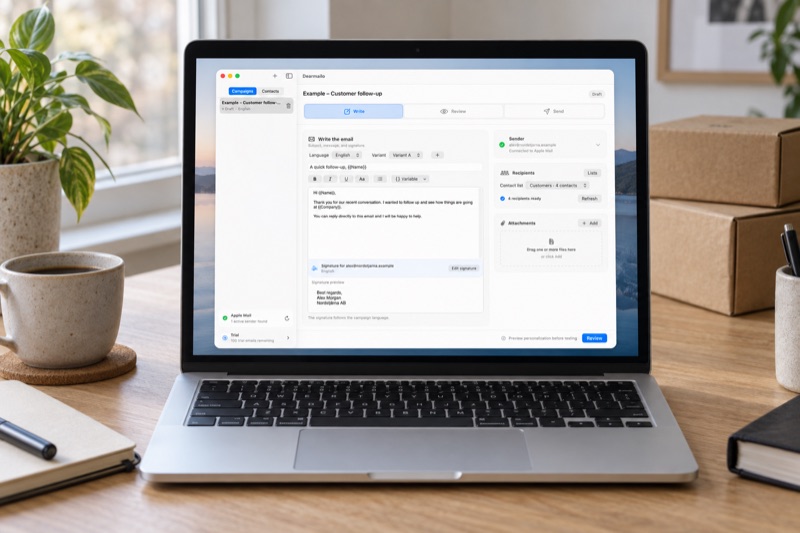
What you need: For Dearmailo, a Mac running macOS 15 or later and an account that can send email in Apple Mail. For Word and Outlook, check the version requirements below.
Choose your approach
- Individual messages
- Best forEach person needs a message with different wording.
- Keep in mindYou prepare and check each message yourself.
- Word for Mac + Outlook
- Best forYou use Word and Outlook and want to personalize messages from a contact list.
- Keep in mindCompatibility depends on your versions. Follow Microsoft’s Mac instructions and send a small test first.
- Dearmailo + Apple Mail
- Best forYou use Apple Mail and want to add each contact’s name or other details automatically.
- Keep in mindThe Mac must remain awake, with Dearmailo and Mail open and undisturbed.
How personalization works
The contact list supplies the name and company for each email.
| First name | Company | |
|---|---|---|
| anna@example.com | Anna | Northstar Studio |
Hi Anna,
Here is the information we discussed for Northstar Studio.
Use an address you control for your test. Insert the name and company using Variable, rather than typing them into the shared message.
Can you use Outlook for mail merge on Mac?
Word for Mac provides a mail-merge workflow for sending personalized emails with a compatible email application. Check Microsoft’s current Mac instructions against your installed Word and Outlook versions before starting.
- Follow Microsoft’s macOS instructions to connect a small test contact list and insert the personalization fields.
- Preview the results. Choose Finish & Merge → Merge to E-Mail, select the email-address field, then enter the subject and email format. A compatible default email program must be configured.
- Send to addresses you control first. Check the received messages and sender before using your full list.
Set up mail merge with Dearmailo and Apple Mail
 Dearmailo
With Dearmailo, you import contacts from files such as Excel or CSV and write an email personalized with each recipient’s name and other details. The emails are then sent individually through Apple Mail.
Before starting, check that your account can send email in Apple Mail and complete the Dearmailo setup guide.
- Import the contact list. In Contacts, choose Import file and match the columns to the correct fields.
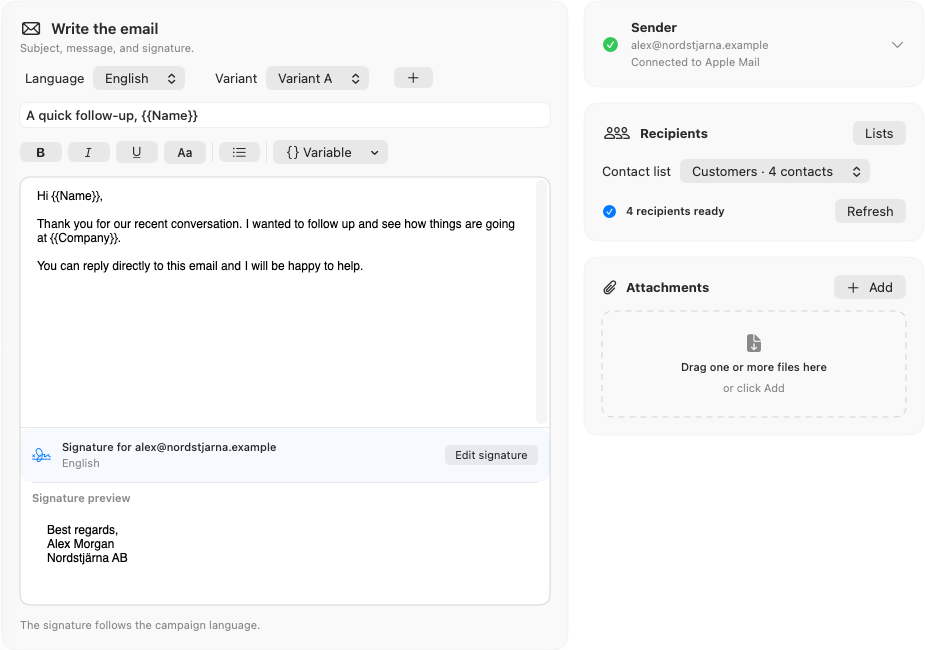
- Write your message. Select the list under Recipients, write the subject and message, and insert personal details using Variable. Choose the sender and signature.
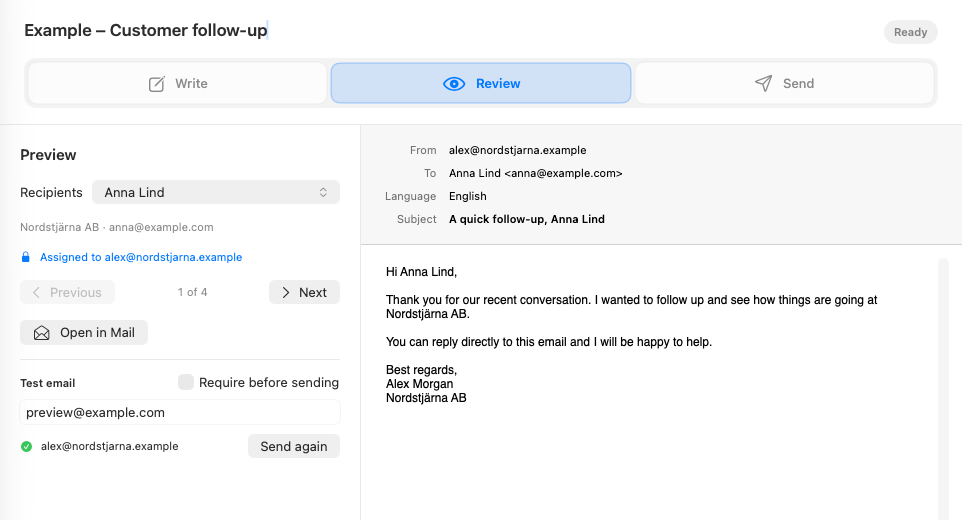
- Open Review. Continue to the checks below before sending.
Check the personalized emails and send yourself a test
Check recipients, personalized details, links and attachments, and correct anything missing or incorrect. Send a test to yourself and check the received email before sending to your contacts. If you change the message, sender, signature or attachments, send a new test.
Keep your Mac available while the emails send
Keep Dearmailo and Apple Mail open, your Mac awake and connected, and avoid working in other apps until sending finishes. Your email provider’s sending limits still apply.
“Sent via Mail” means Apple Mail accepted the send command. It does not confirm delivery to the recipient’s inbox.
Follow the step-by-step Dearmailo guide for the full import, review and sending workflow.
Check your result
- The preview contains the correct details for every intended recipient.
- A test arrives at an address you control with the expected sender, formatting and attachments.
- You have time to leave the Mac and Apple Mail undisturbed during sending.
Common questions
Can I just put everyone in Bcc?
Bcc hides the other recipients’ email addresses, but everyone receives the same message. Use mail merge when each email needs a different name, company or other detail.
Why does the campaign still show old contact details?
Each Dearmailo campaign keeps a saved copy of its contact list. After editing the list, use Refresh under Recipients and check the finished messages again.
A first name is missing. Should I send anyway?
Preview that recipient’s finished greeting. Add the missing name, rewrite the greeting so it works without the name, or remove the recipient from this campaign. Then review and test the revised message.
Send personalized emails through Apple Mail.
Prepare your contact list, write your message and review each personalized email before sending through Apple Mail.
Sources & further help
Long Lasting Apps makes this app and publishes this article.