

An iPad on your desk
Turn your iPad into a desk clock
Give a spare iPad a useful place. Set up a clock you can read from your seat and keep it visible while you work.
The short answer
Open Long Lasting Clock, start with the free Digital face in Midnight, and adjust the size for your viewing distance. Turn on Keep Screen Awake and leave the app open.
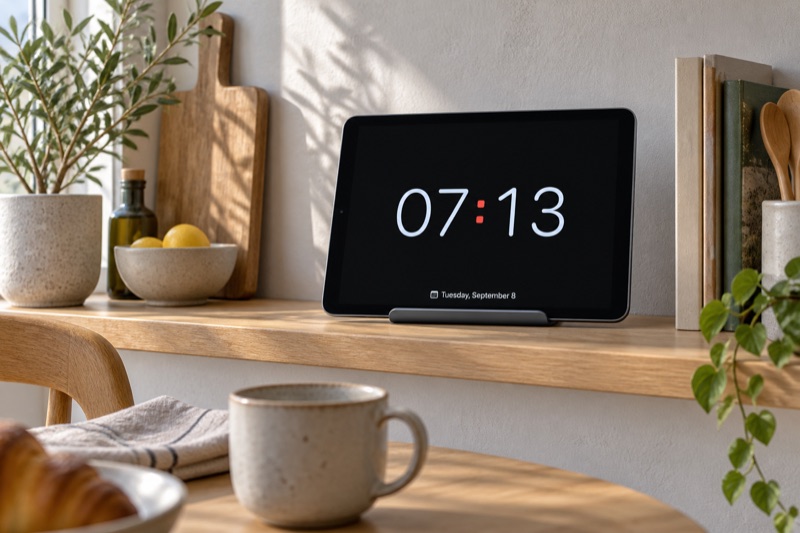
What you need: An iPad running iPadOS 16 or later, Long Lasting Clock and a stable stand. Keep a charger nearby for longer sessions.
Choose a place and check your iPad
Install Long Lasting Clock and place the iPad where you can comfortably see the time.
Make the time easy to read
 Long Lasting Clock
Check from where you will actually use it. Digits that look large in your hand may be too small across a desk or kitchen.
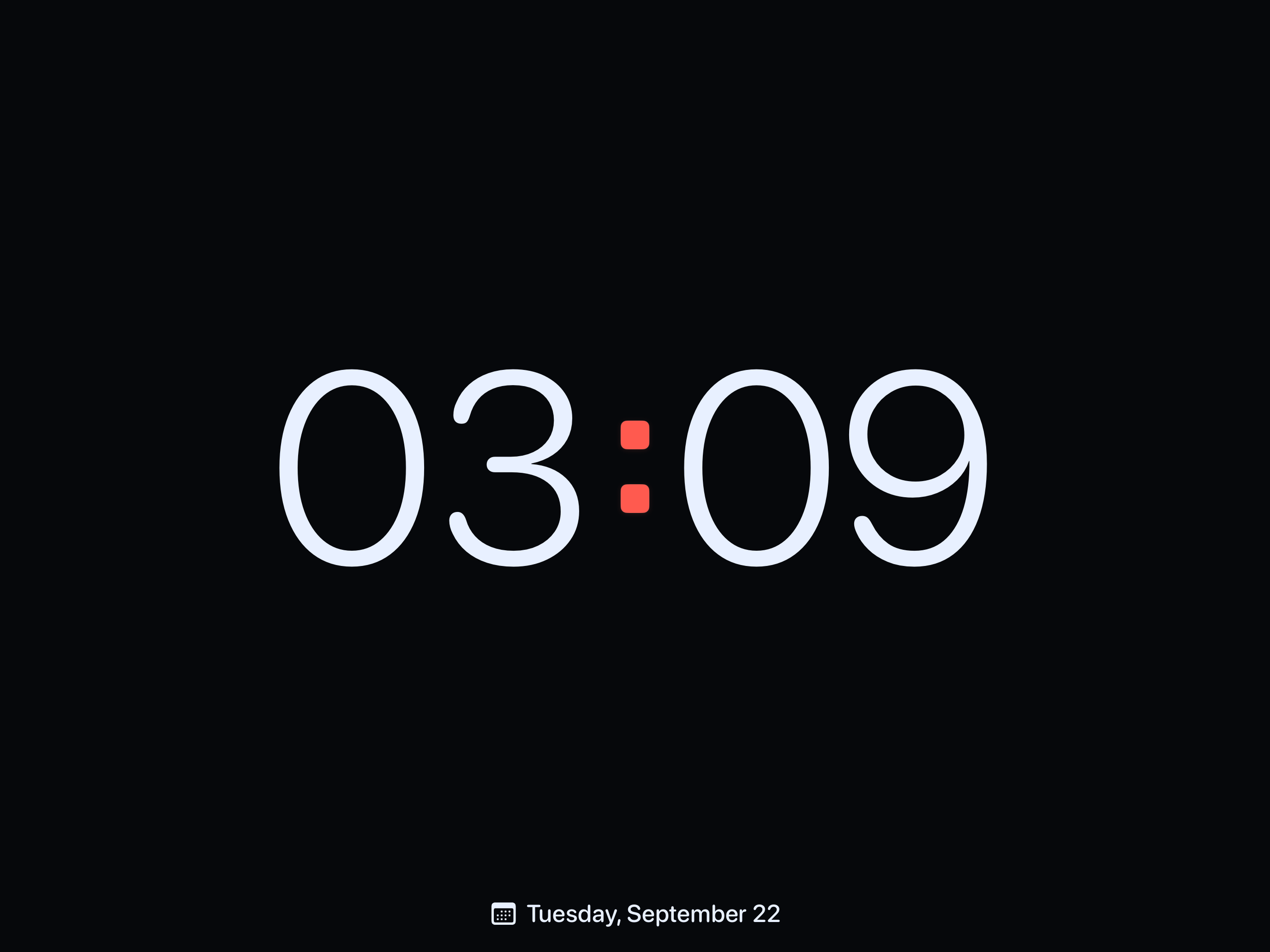
- Open Long Lasting Clock and choose Digital with Midnight.
- Rotate the iPad to suit your stand, then check the time from your usual seat.
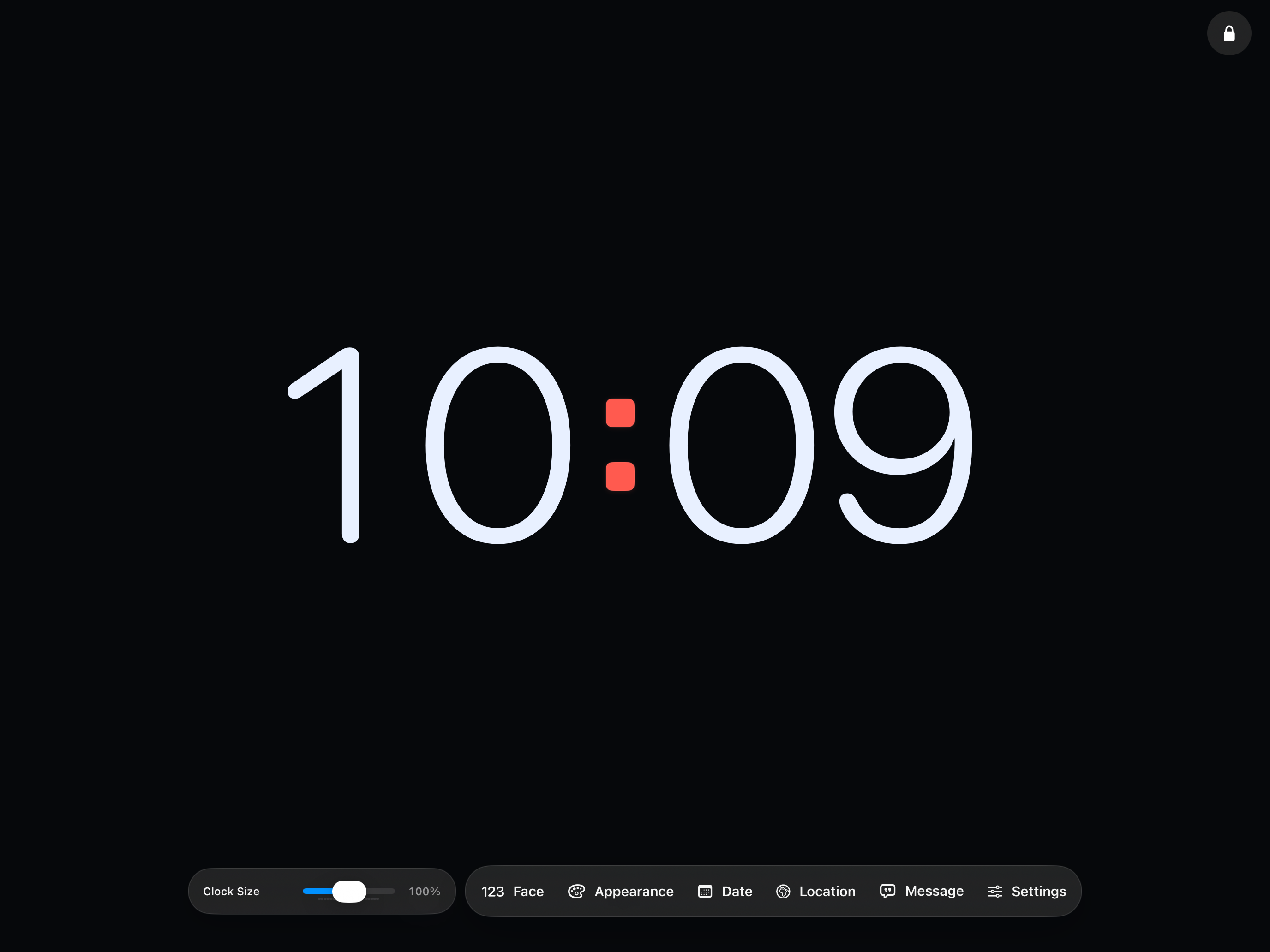
- Tap the screen to reveal the controls. Tap Face to select the clock-size slider, then adjust it. Date has its own size control.
Keep the clock visible
- Open Settings → Display inside Long Lasting Clock and turn on Keep Screen Awake.
- Return to the clock and set a comfortable device brightness. Leave the app open while you use it.
- Tap the separate lock at the top right to prevent accidental adjustments. Touch and hold an empty area of the clock to unlock.
The lock protects the controls from accidental taps. It does not lock the iPad or prevent switching apps.
Use it comfortably for longer sessions
Use moderate brightness and connect a charger when needed. Burn-In Protection gently moves the display, but cannot guarantee protection against screen burn-in.
Check your result
- You can read the time from your usual seat without leaning forward.
- The screen stays on while the app is open, at a comfortable brightness.
If something does not work
The screen still goes dark. What should I check?
Update to version 1.2.1 or later, which fixes a Keep Screen Awake issue. Check that Keep Screen Awake is enabled and that the app remains open.
Where did the controls go?
Tap the screen. If you locked the controls, touch and hold an empty area to unlock. Their visibility can also be adjusted in Settings → Display.
Why will the iPad not rotate?
Check orientation lock in Control Center. The app supports portrait and landscape, with separate clock sizes for each.
Give your iPad a place on your desk.
Adjust the clock to suit your desk.
Sources & further help
Long Lasting Apps makes this app and publishes this article.