

Long Lasting Time Reports
How do I send a weekly timesheet as a PDF from my iPhone?
If your hours are in Numbers, export the sheet as a PDF. If you logged your hours in Long Lasting Time Reports, choose the project and week, then share the PDF.
Export from Numbers
- Open the weekly timesheet. If the workbook contains other clients’ hours, make a copy containing only the rows and sheets for the client receiving the PDF.
- Open the sharing options, choose Export and Send, then choose PDF.
- Check the dates, total and page layout. Tap Export, then send the PDF using Mail or save a copy to Files.
Send a PDF from Time Reports
 Long Lasting Time Reports
Tracking one active project is free on iPhone with iOS 17 or later. Sharing a PDF requires the Full Access purchase.
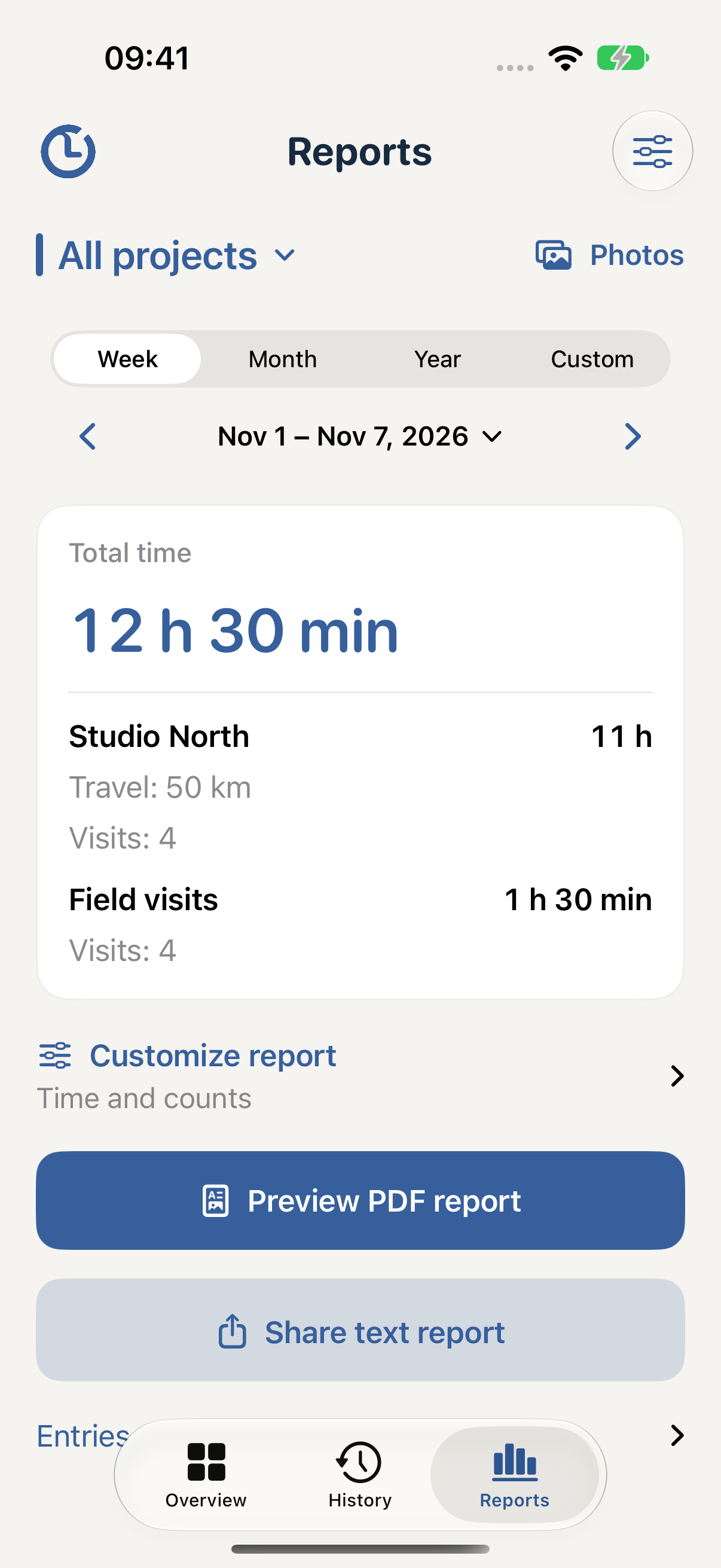
- Open Reports and select Week. Use Custom if your client needs a different date range.
- Tap the project selector and choose the project you’re reporting on.
- Open Customize report. Include only the details your client needs, especially when entries contain notes, photos or locations.
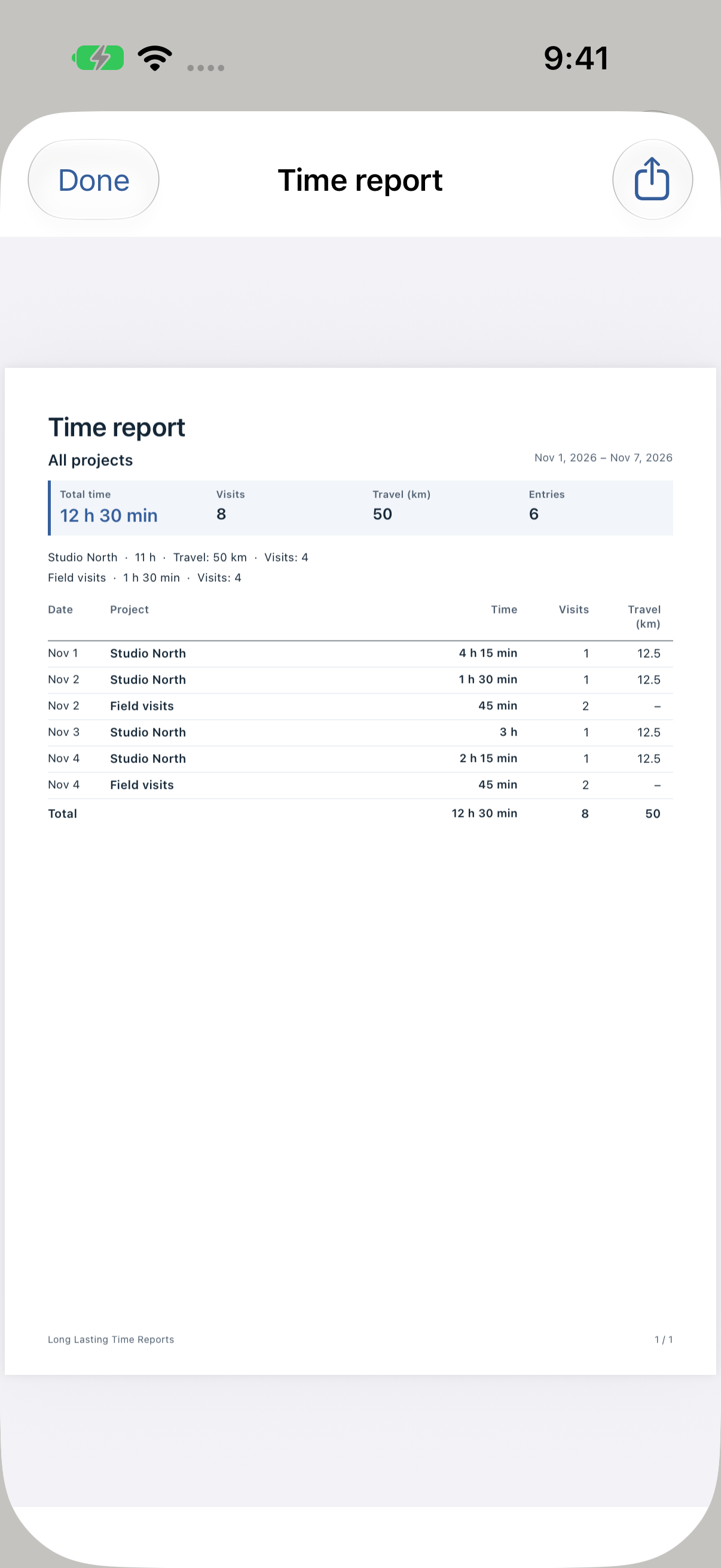
- Tap Preview PDF report. Check the project, dates and total, then tap the share button to send or save the PDF.
These screenshots show All projects (12 h 30 min). For a Studio North report, select Studio North and check that the PDF total is 11 h.
If an entry is missing, check that you saved the session to the selected project and that its date falls within the reporting period. About Long Lasting Time Reports